Main Layouts and Navigation
📘 Overview
The following pages will provide you with an overview of how to navigate across your NimbleStory environment and the main pages you can expect to encounter.
This page is still in progress
📘 Navigation within NimbleStory
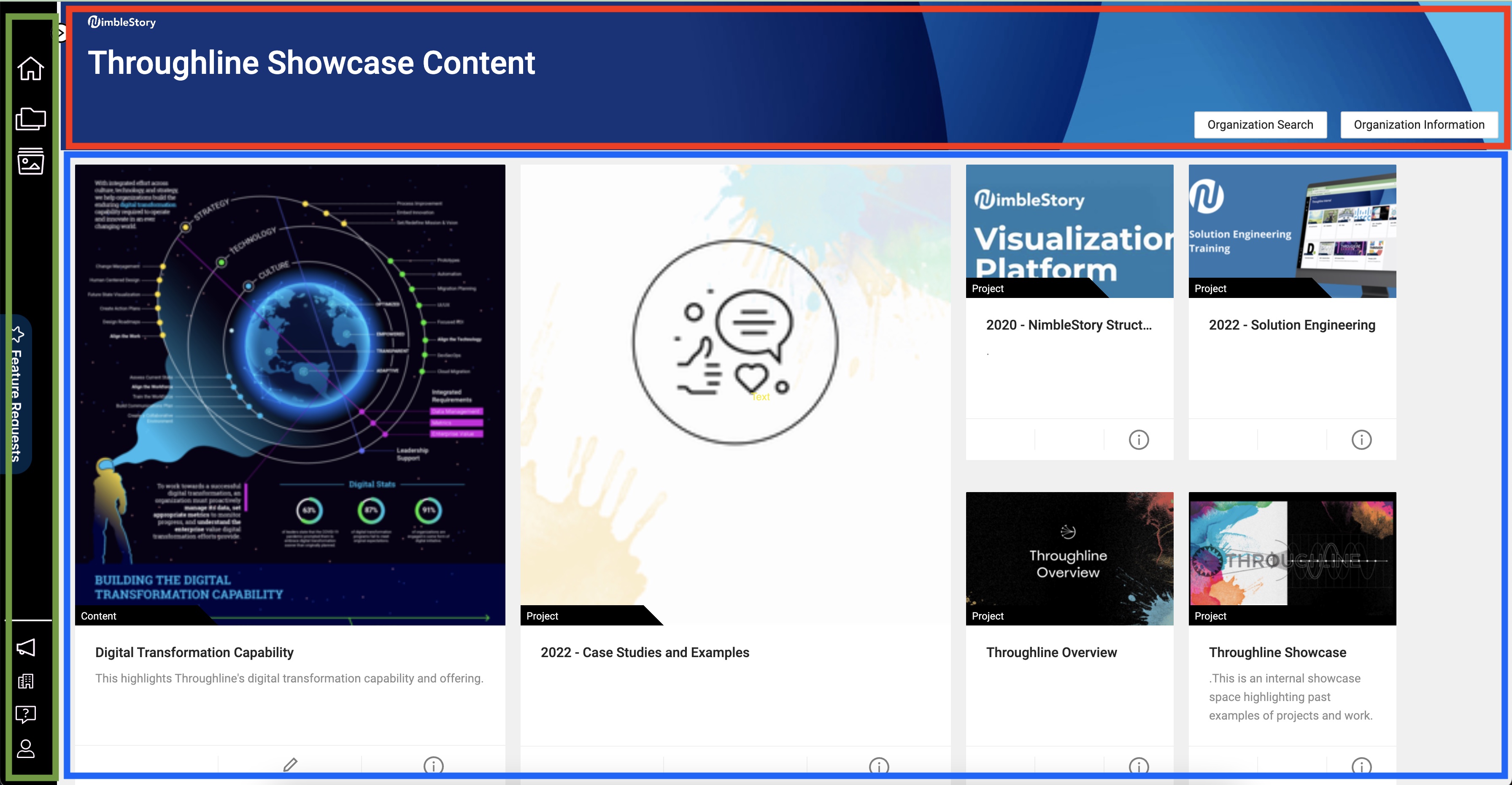
To help orient you and your experience with NimbleStory, we want to provide an overview of the primary ways to navigate across an Organization. To start we will highlight the left navigation bar that is consistent across the various views of the application. There are three primary layout areas for navigation in NimbleStory.
- The Left Side area is our Main Navigation Menu (Green) and allows you to navigate through various NimbleStory views.
- The Top Area is our Information Panel (Red) which provides Titles, Descriptions, and Action buttons that relate to the content below it.
- The Main Content Area (Blue) is home to Card Views when browsing and finding content, and full views of our various content items.
📘 Main Navigation - Organisation Navigation
-
The top area navigation is intended for the navigation of content within the currently selected Organization.
-
Primary elements here include:
-
Home - Navigates to your Organization’s Home view
-
Projects - Navigates to the Project Home view with a list of available Projects
-
Collections - Navigates to a select set of filters for content you have available to you
-
Search - Available for some organizations
-
Tokens - Available for some organizations
-
Additional Custom Elements - Available for some organizations/ projects
- example: we have enabled a Feature Request button for some users and it appears in this area
-
-
Expanded Top Area navigation
- Clicking the expand icon allows more room for Top Area Navigation
- Projects and Collections in the expanded view can be listed and selected here directly for quick access
📘 Main Navigation - Action Panel
-
The bottom area navigation is intended for system and user-level tasks that are outside the bounds of the selected Organization.
-
Primary elements here include:
-
Messages - Opens the notifications center in a right side panel.
-
Organizations - Opens a list of the Organizations where your account has been added to at least 1 Project, so you can change to that Organizational context.
-
Help Options - Opens a context menu of help options
-
FAQs - Links to our Frequently Asked Questions Document
-
Request Help - Links to our Support Portal that has a variety of forms to assist users in various scenarios.
-
Report Error - Invokes our bug report overlay that allows the user to annotate/ highlight/ provide comment for submission to NimbleStory support for assistance.
-
-
Account
-
(FUTURE ITEM) User Preferences
- Login and Content Access History
- Manage Favorites List
- Manage Name/ Email changes
-
Change Password - Allows you to change the password on your NimbleStory account
- This item will be hidden if you have logged in via Single-Sign-On
-
Logout - Clears your session and sends your browser back to the login page
-
-
📘 Instruction: How to set your default Organization
Users with access to multiple Organizations may want to set their default to a specific Organization that they prefer to start in. This can be accomplished with the following steps:
- Ensure you are in the Organization that you want to become your default Organization (by using the Organization navigation item)
- When the Organization list appears, click “Set as Default” next to your current Organization
- To change this at any future time, simply repeat steps 1 and 2
- The next time you login to NimbleStory you will be taken directly to your default Organization
Please use screen shots and short videos to convey information, people don’t want to read a wall of text to figure something out.