Content Templates
📘 Overview
We've improved how content templates work to support more complex content types—like Journeys—making it easier than ever to create consistent, high-quality content. As a Curator, you can now access and apply templates directly from the Create button. This article will walk you through how to access, use, and get the most out of content templates.
📘 Instructions
Follow the step-by-step instructions below to learn how to use content templates.
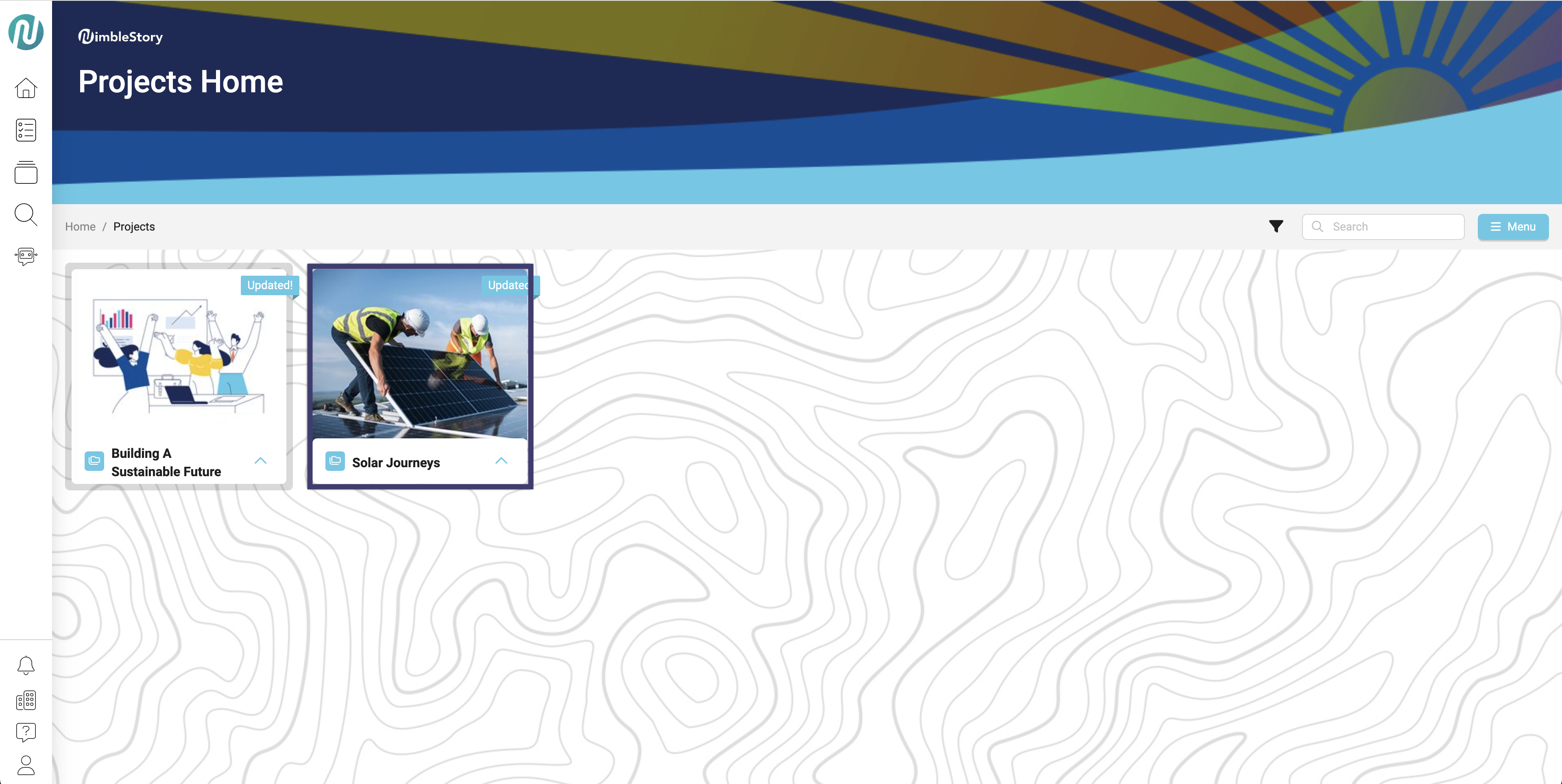
- Click the project you would like to add content to.
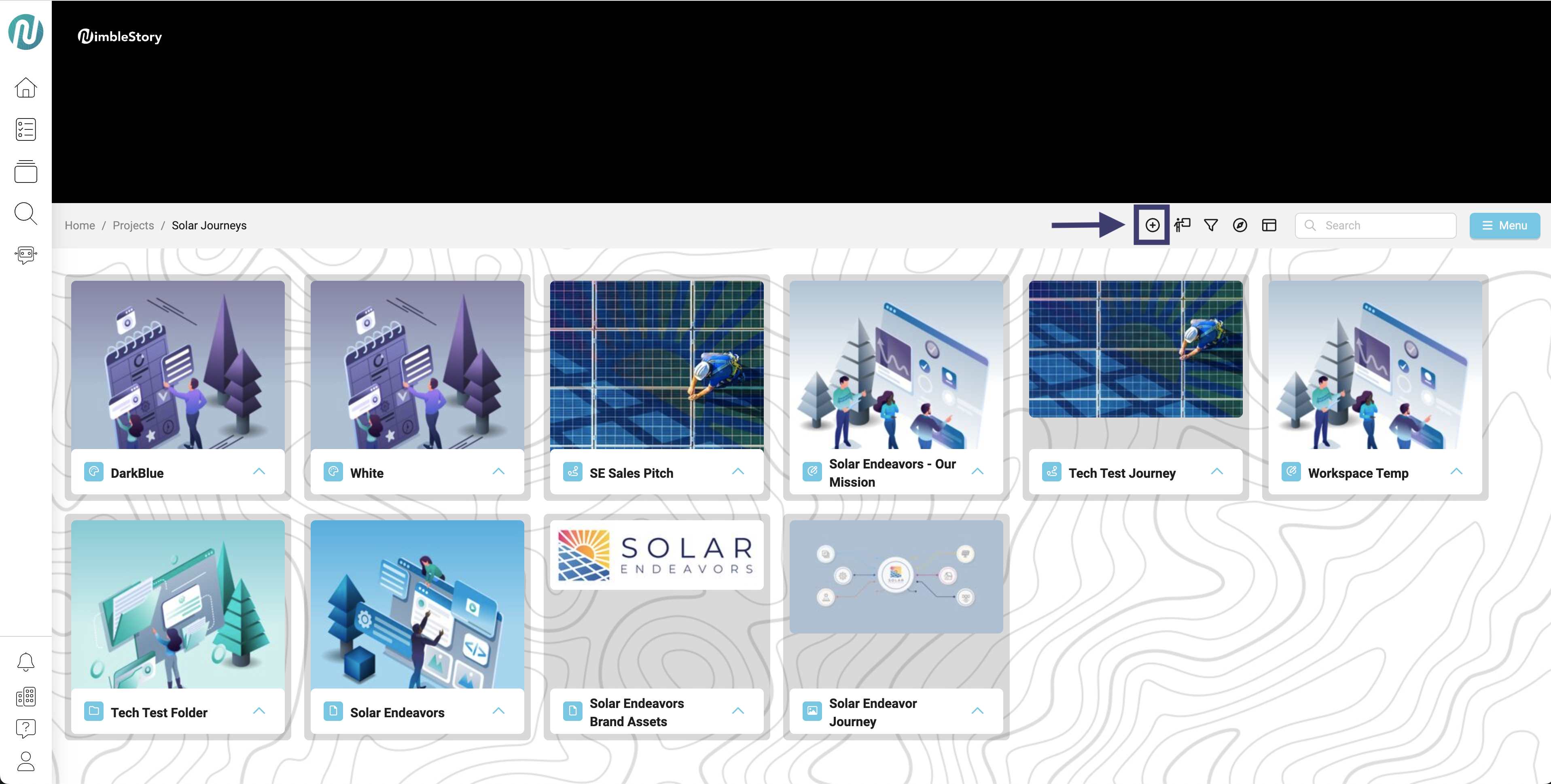
- Select the Create Button
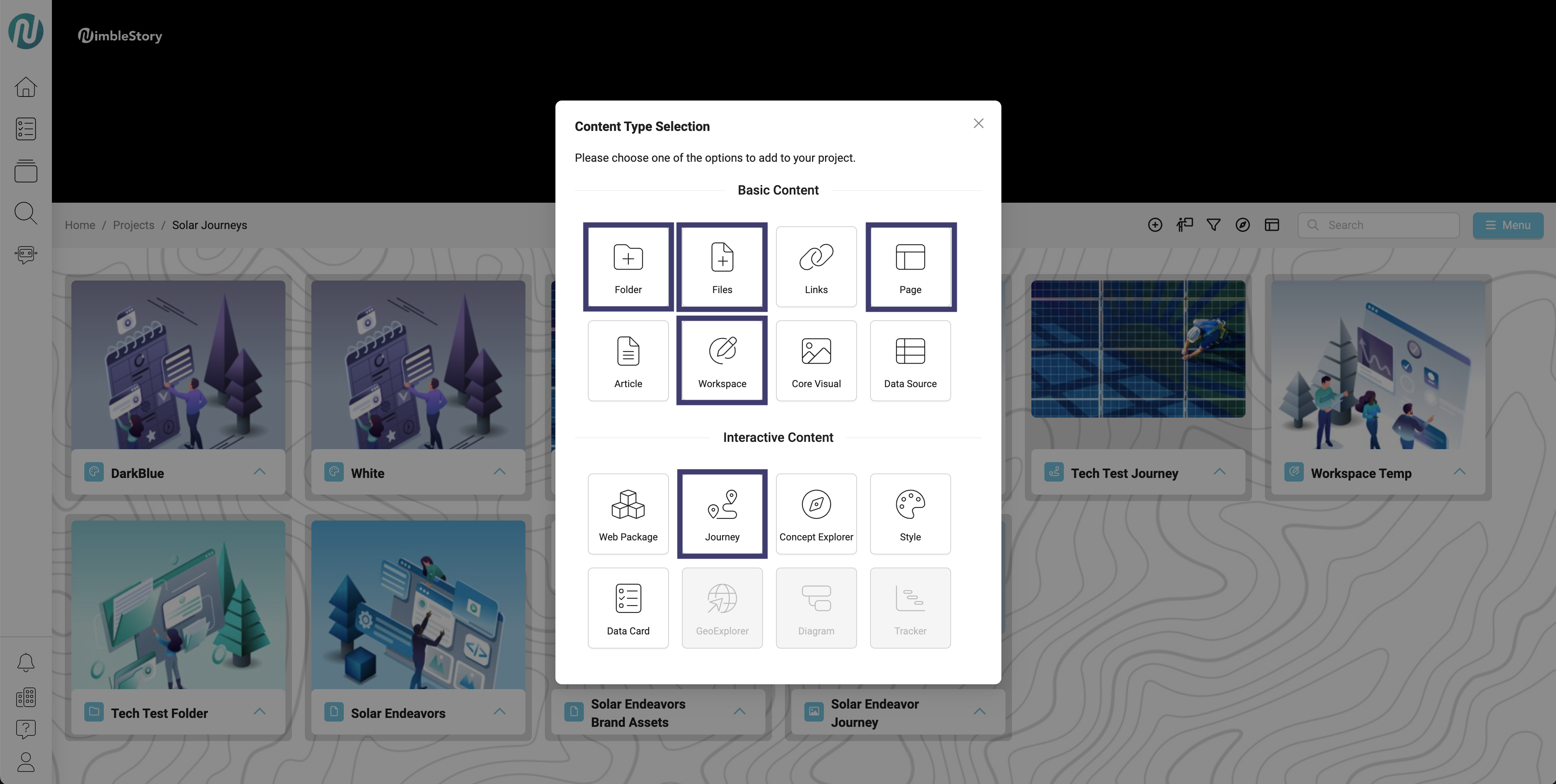
- Below are create items are that able to be templated/already have a template implemented within.
-
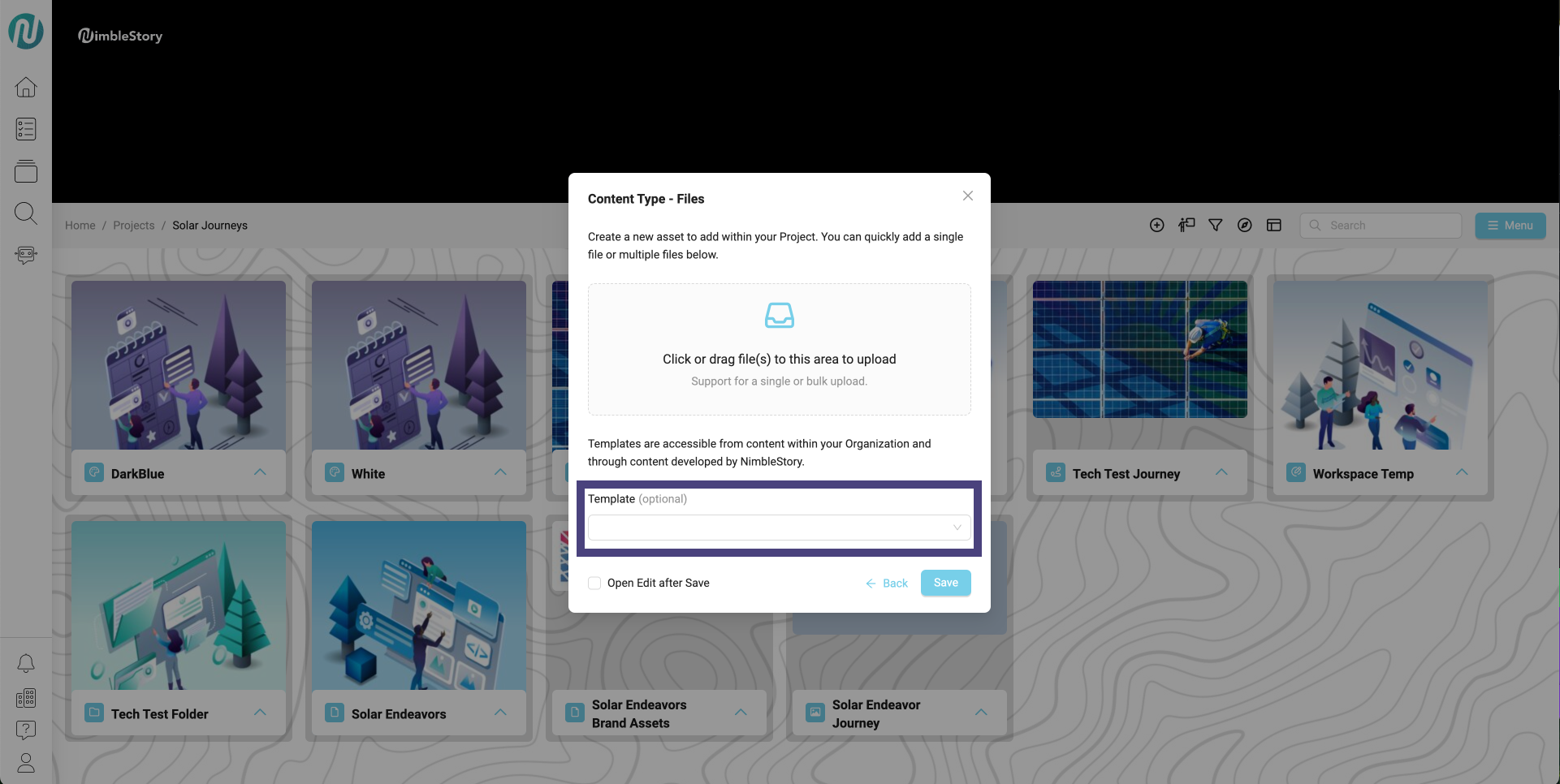
When creating a piece of content, a modal will appear before saving.
- Here you will see a box that says “Template.” Click the drop down arrow to see what types of templates are available for that piece of content.
- If a template is not available, the template box will be greyed out and will not allow you to click within.
- Once selecting the template, click “Save”
If you created content that you’d like to turn into a reusable template, please contact the NimbleStory team for support.