Curate - Content Folders
📘 Overview
Folders can be added to your Project space, allowing your organization to create additional levels of structure. A folder can host any content or assets made available in NimbleStory. To learn more about them and other content, please visit /creating-and-curating-content/content-types-in-nimblestory#content-folders
NOTE: To perform this function you must have the proper Create and Edit permissions applied to your user account. If you do not see the Add Content card on your screen, contact your Project or Org Admin for support.
📘 Creating a Folder RELEASE 3.0.3
- To add a Folder select the Add Content card and select the Folder option.
- When adding a folder the only required input is the Title. You may also add a description and a card image thumbnail to differentiate the Folder card within the project.
- Once you have selected “Submit” a new folder will be made available as an interactive card within the Project space.
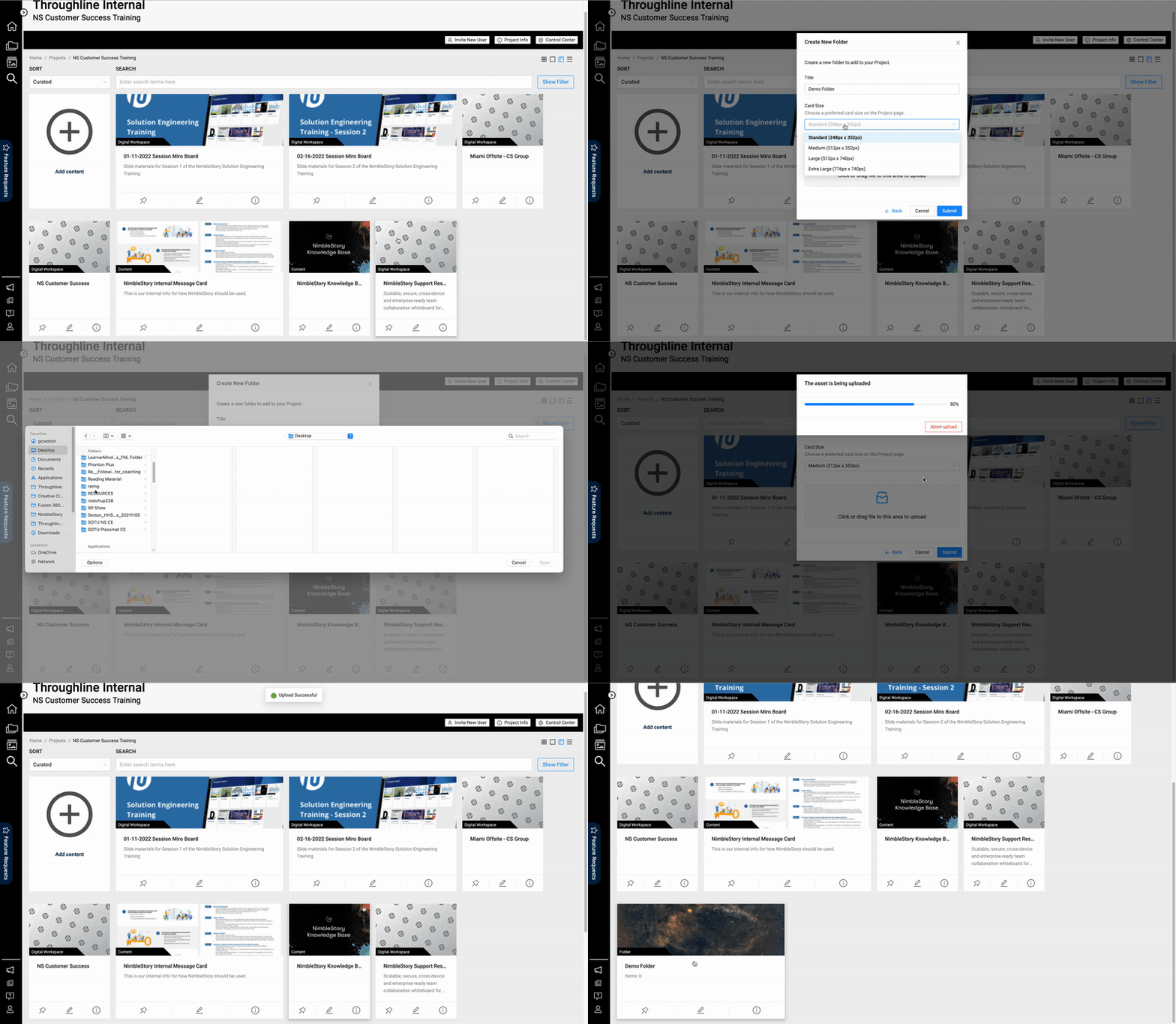
If the new folder does not immediately appear you may need to refresh your browser.
📘 Editing a Folder
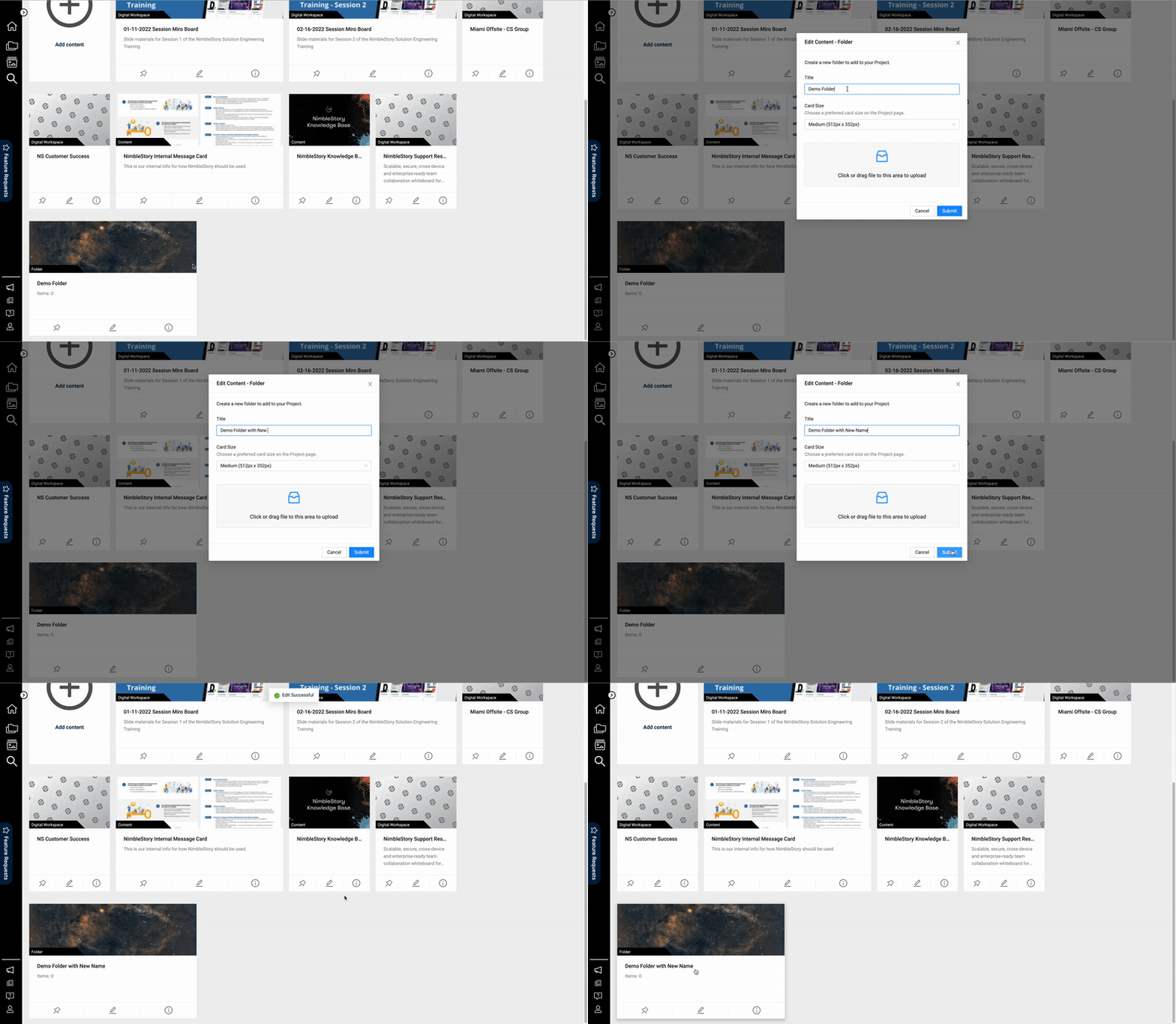
Editing an existing folder is as simple as creating one.
- Select the Edit icon from the bottom of the folder card to open the Editor modal.
- Update the desired information and select Submit to save your updates.
- Once submitted, the Editor modal will close and the page will refresh showing your new changes.