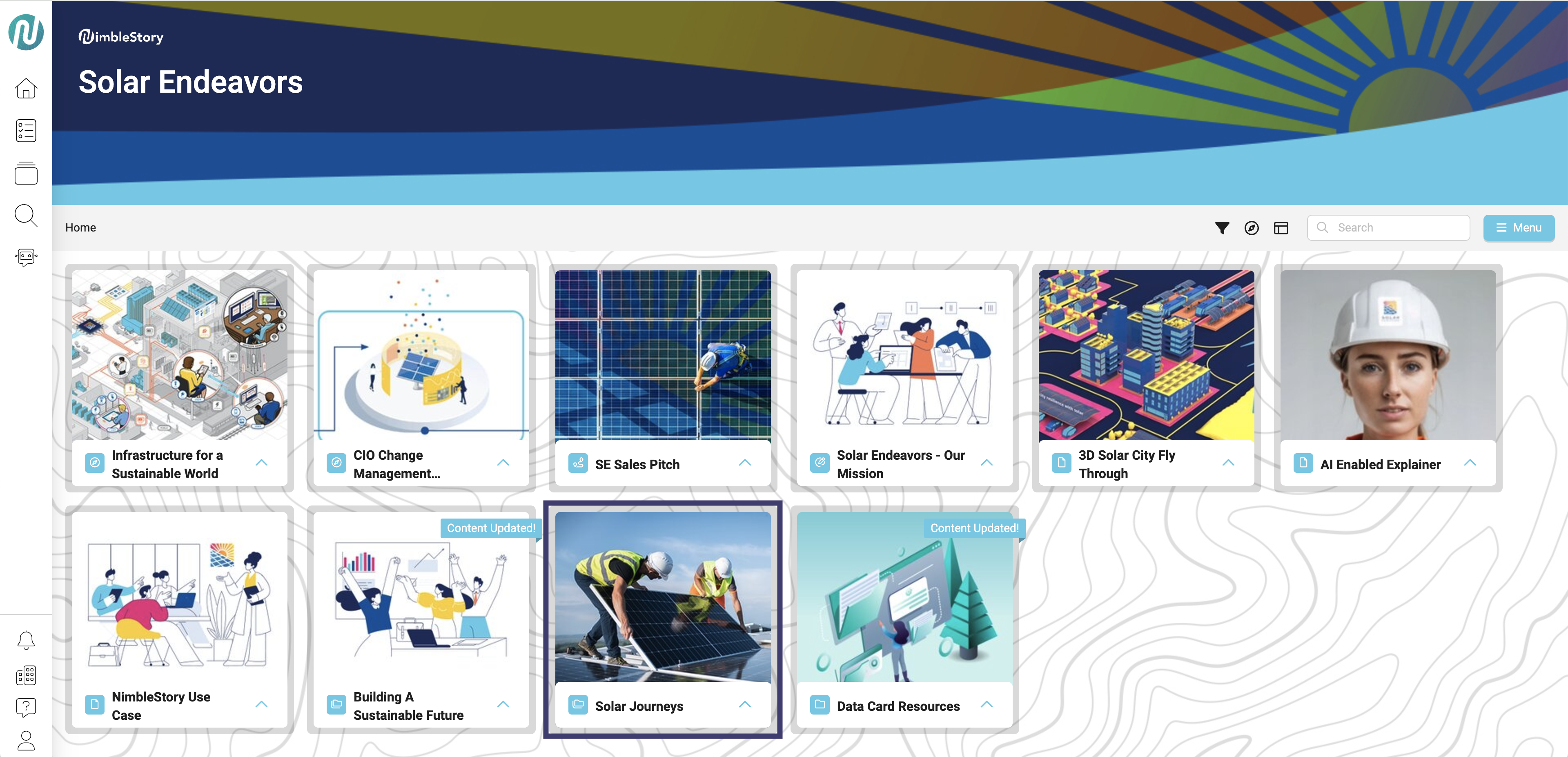
Pinning Content
📘 Overview
Pinning Content helps you highlight the most important assets within your projects/organizations. Here’s how it transforms the way you manage and share knowledge:
-
Spotlight key updates by pinning critical content to the top of your organization, ensuring your team never misses vital information.
-
Keep frequently used resources within easy reach, optimizing workflows and enabling quick reference.
📘 Instructions
Follow the step-by-step instructions below to learn how to pin content.
Pin Content to Home Page
- Navigate to the project or asset that you would like to pin to your home page and select the upwards carrot symbol.
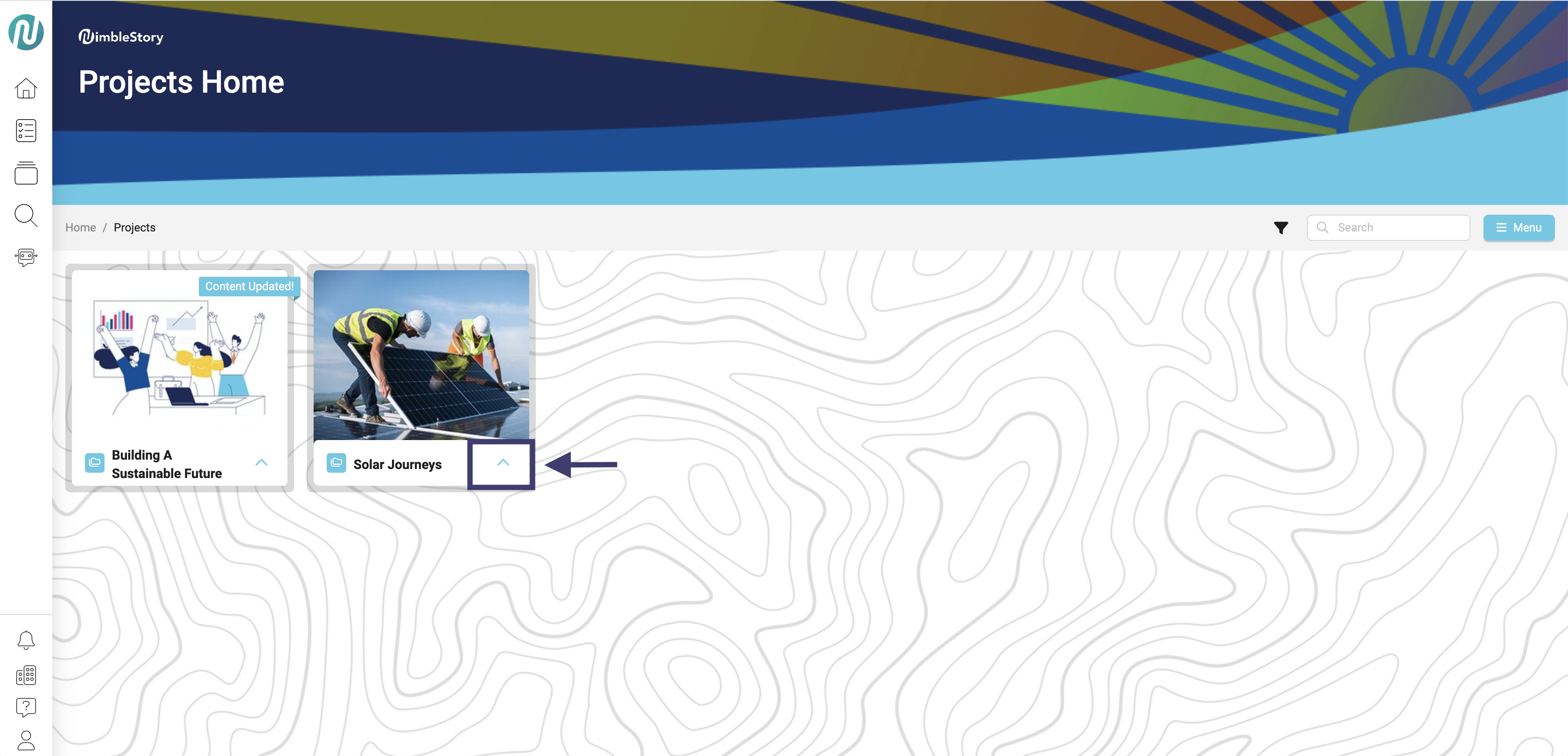
Any project and assets within the project are able to be pinned when given the right permissions.
-
To pin the project/asset, click the thumbtack symbol. To know the status of the asset:
- Filled in thumbtack (black) = Pinned to Home Page
- Not filled in thumbtack (white) = Not pinned to Home Page
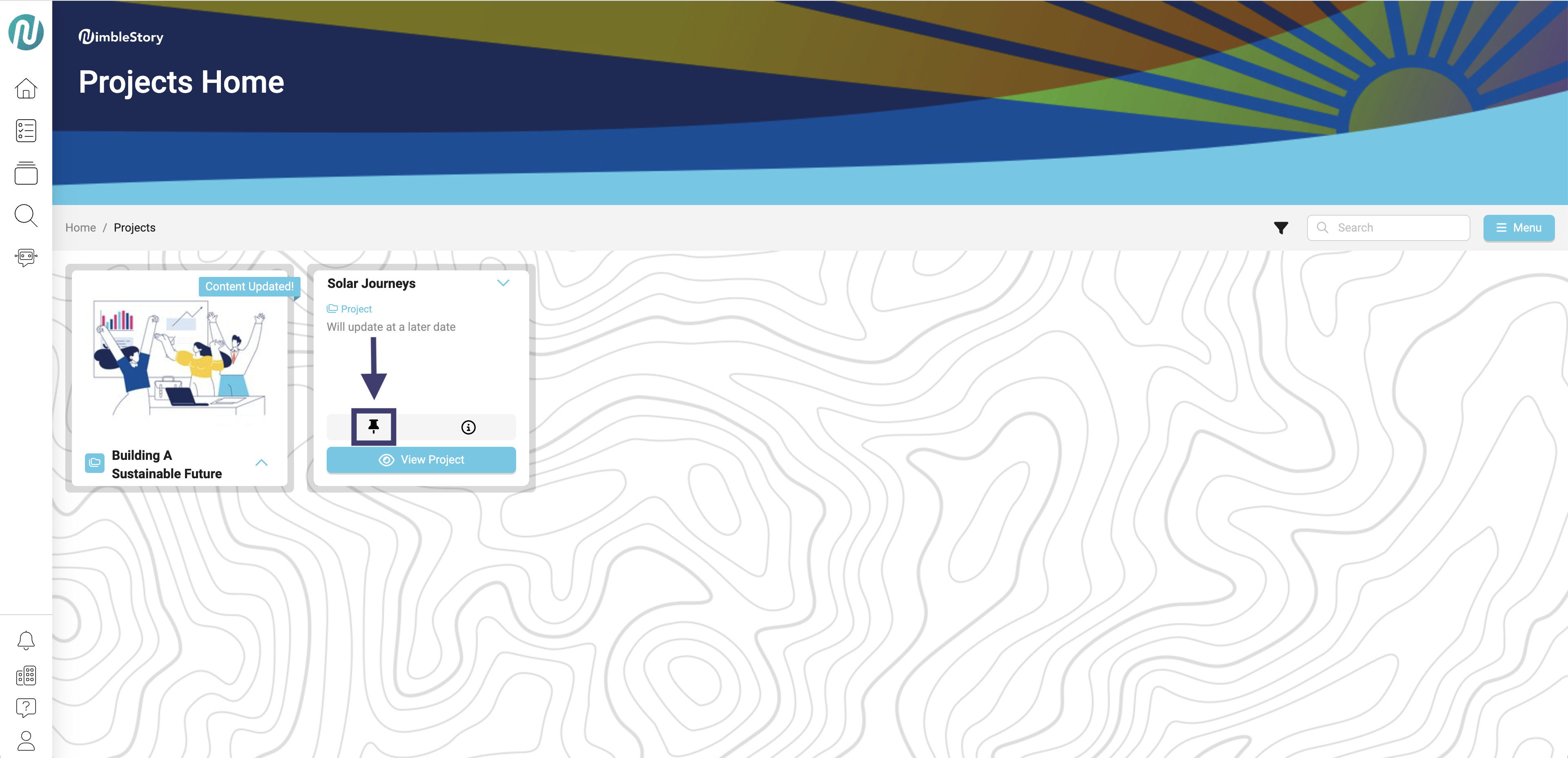
In this image, you can see that the project has already been pinned to the homepage.
- Once you have pinned your content, navigate to the home page.
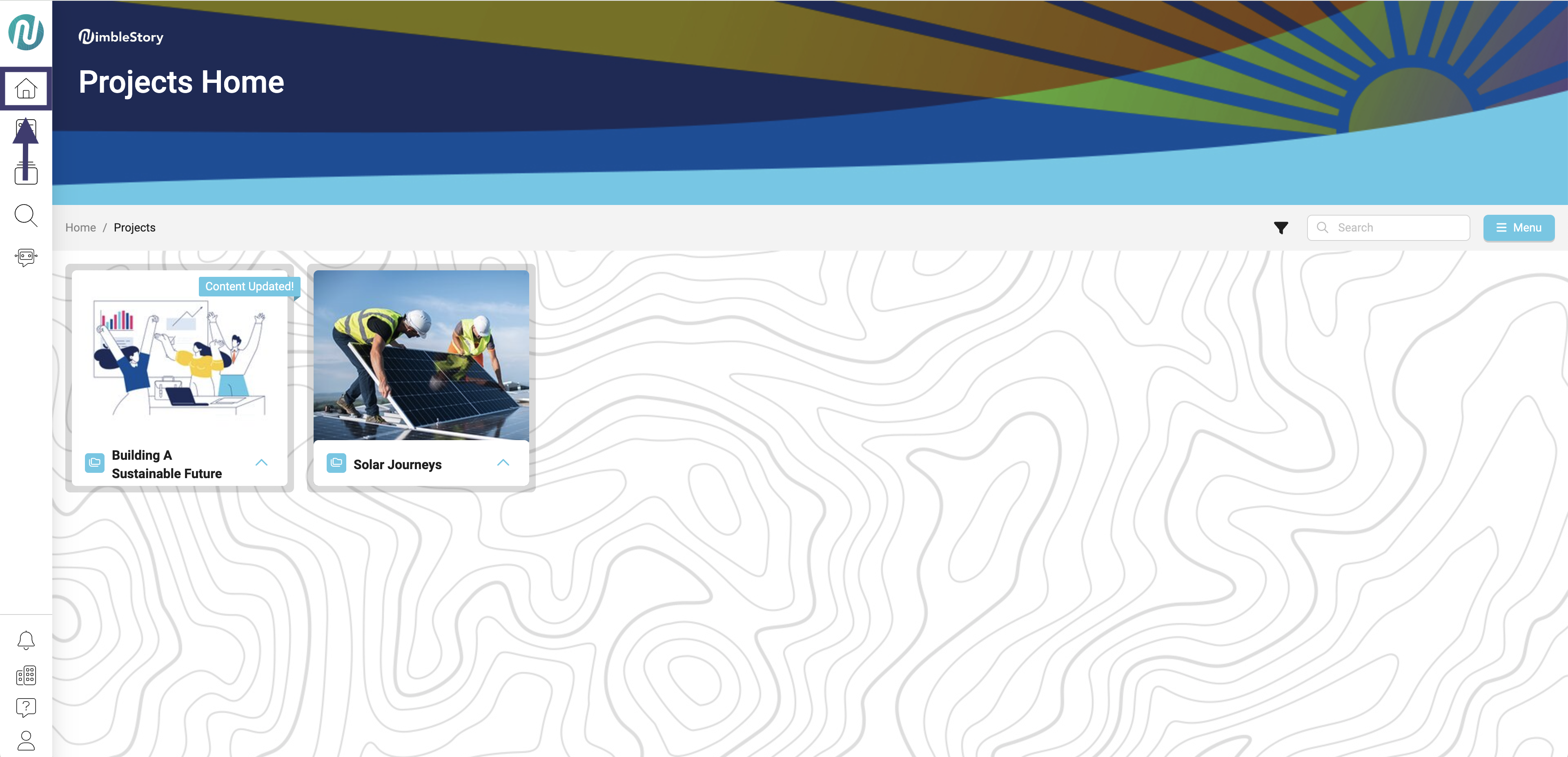
- Here you can see that the content you pinned is now showing up on the home page.