Pinning Project Resources
📘 Overview
Project Administrators can now pin any content, solution, or external link card to a project. Pinned items will appear at the top in a new card format. This article provides step-by-step guidance on how to pin content.
📘 Instructions
Follow the step-by-step instructions below to pin resources/content.
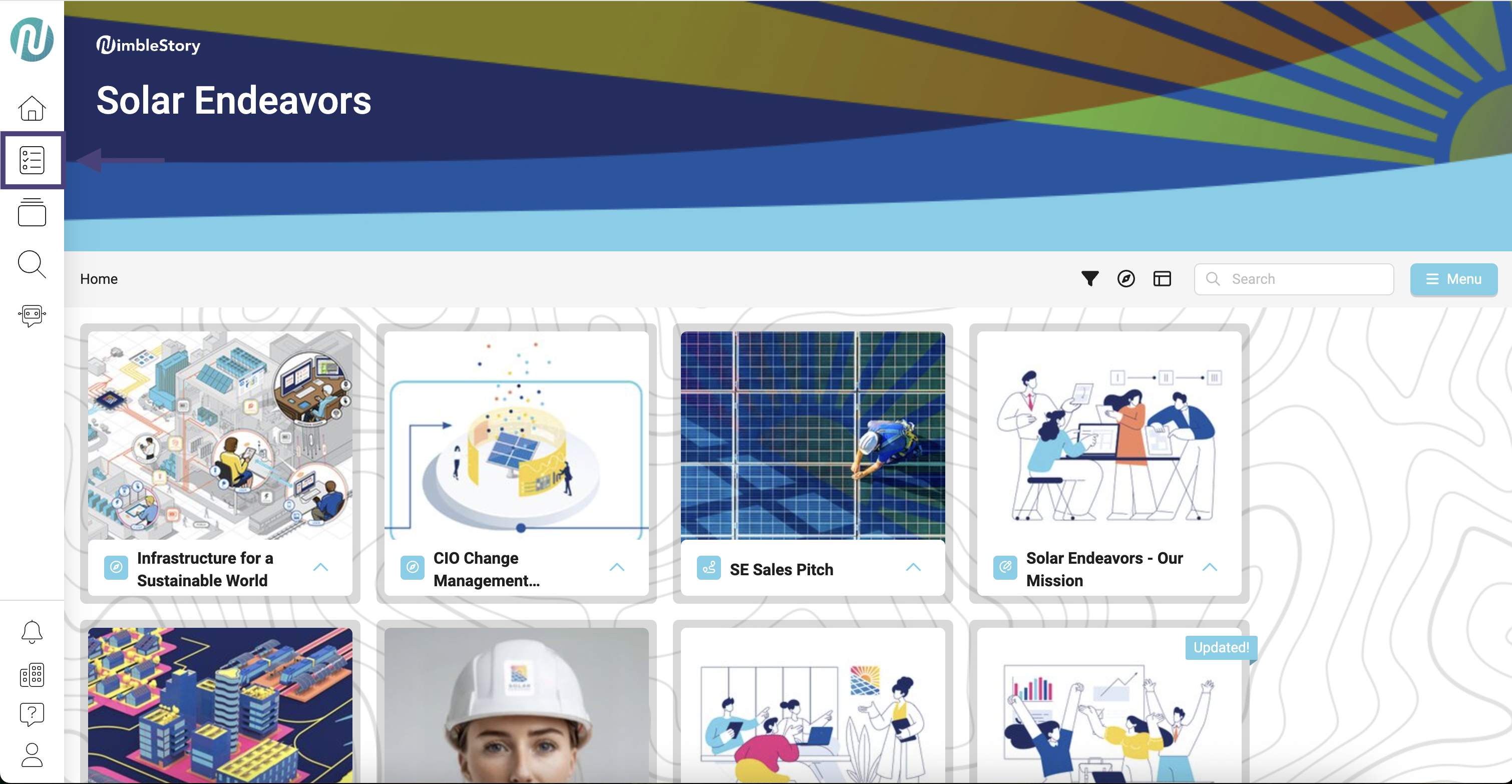
- Once in your organization, navigate to the project button that is located on the left side navigational panel.
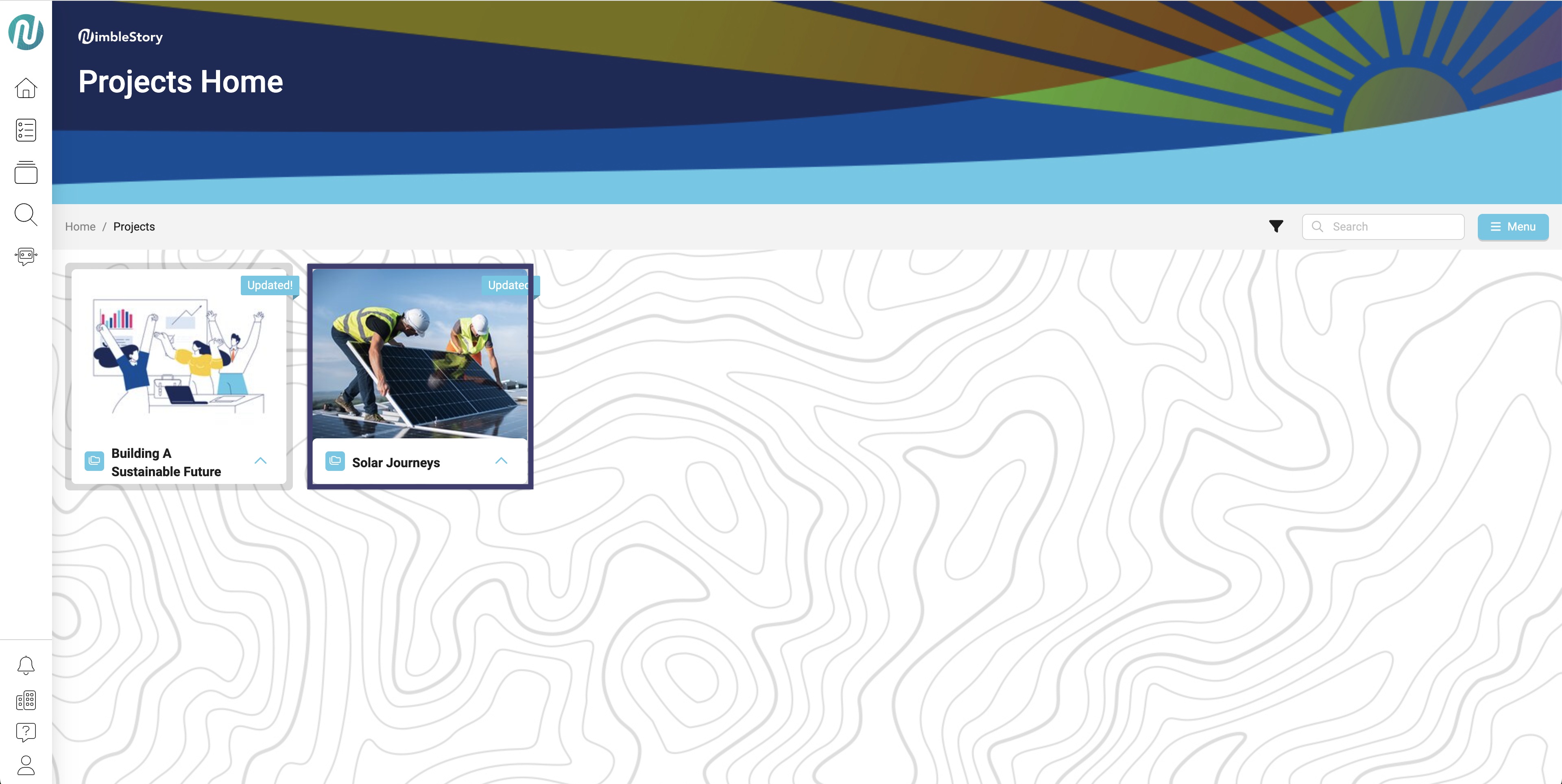
- On the Projects Home Page, click the project that contains the content you want to pin.
- Once you have selected your project, click on the upwards carrot symbol for the piece of content you want to pin.
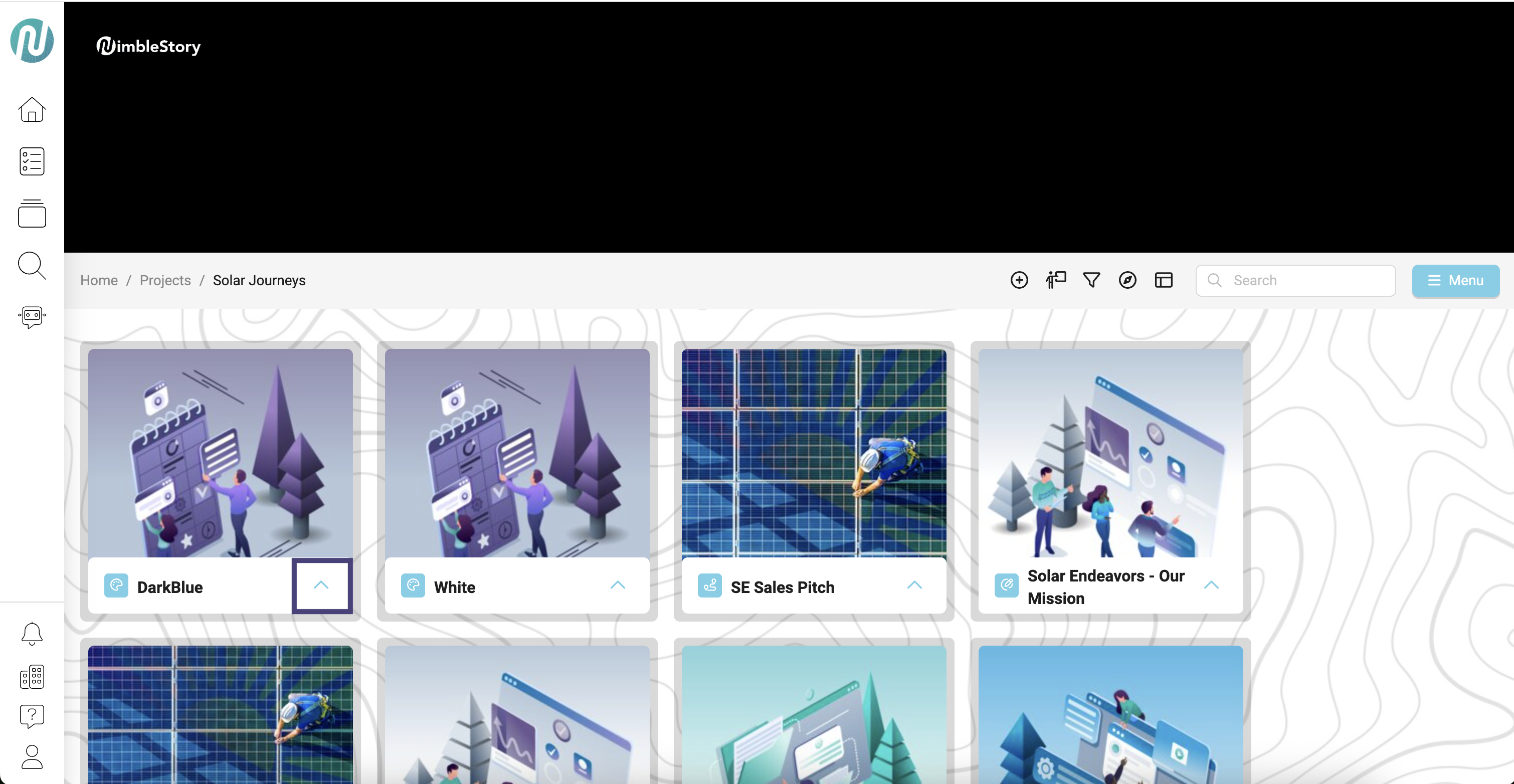
- Four options will appear, select the thumb tack symbol.
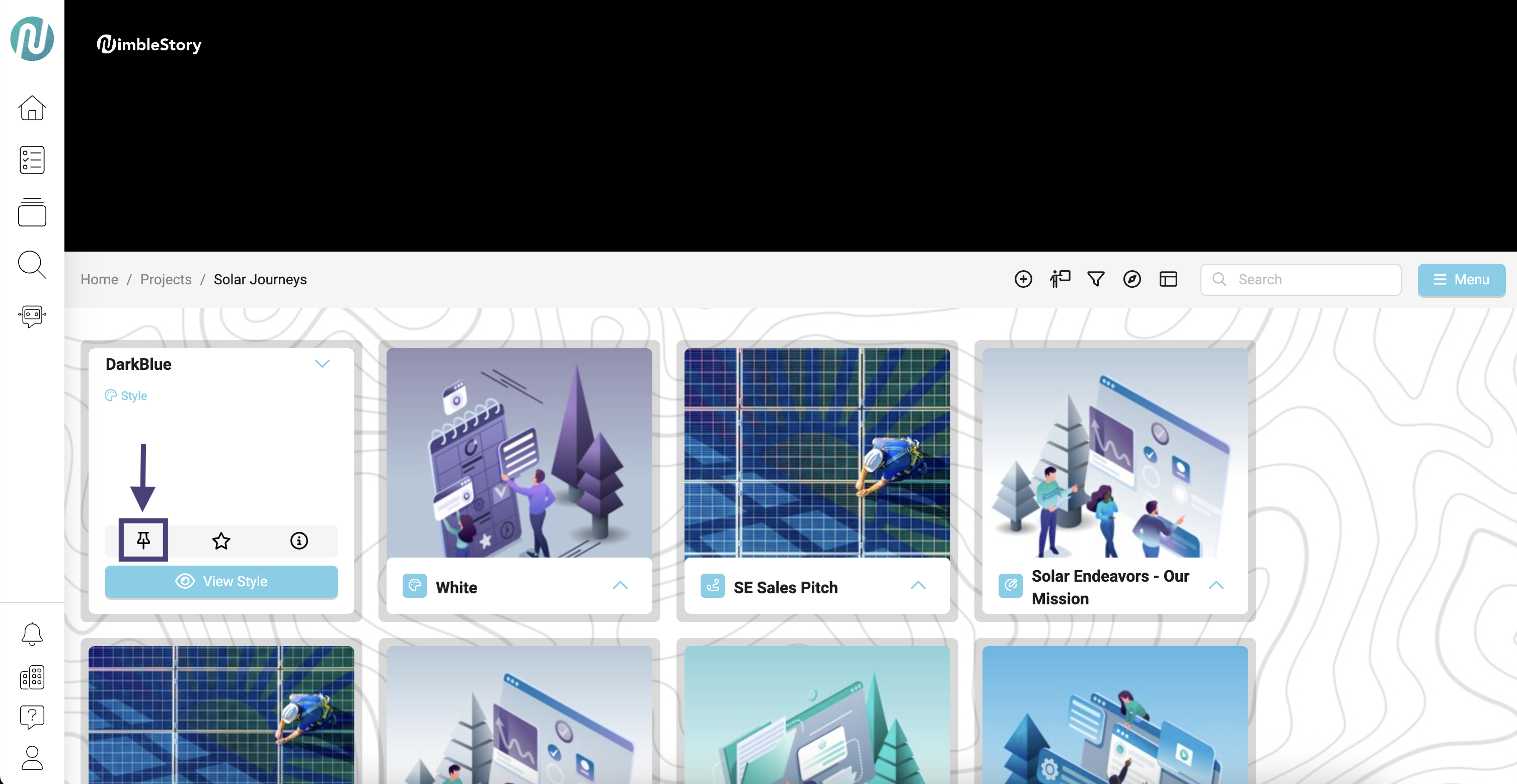
-
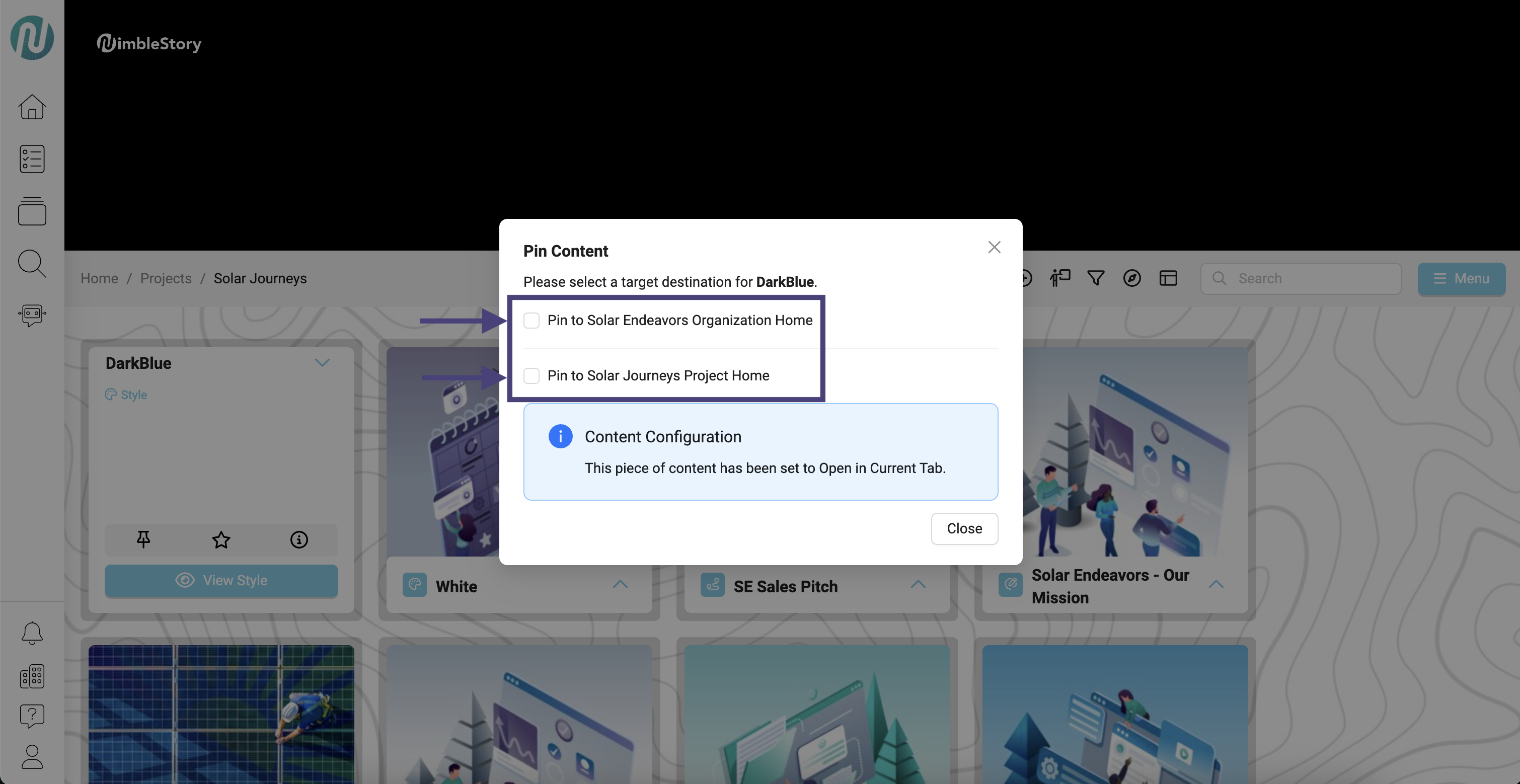
Here you can decide to pin your content to:
- Organization Home page (content will appear right when you open your organization)
- Project Home page (content will appear once you click the project button)
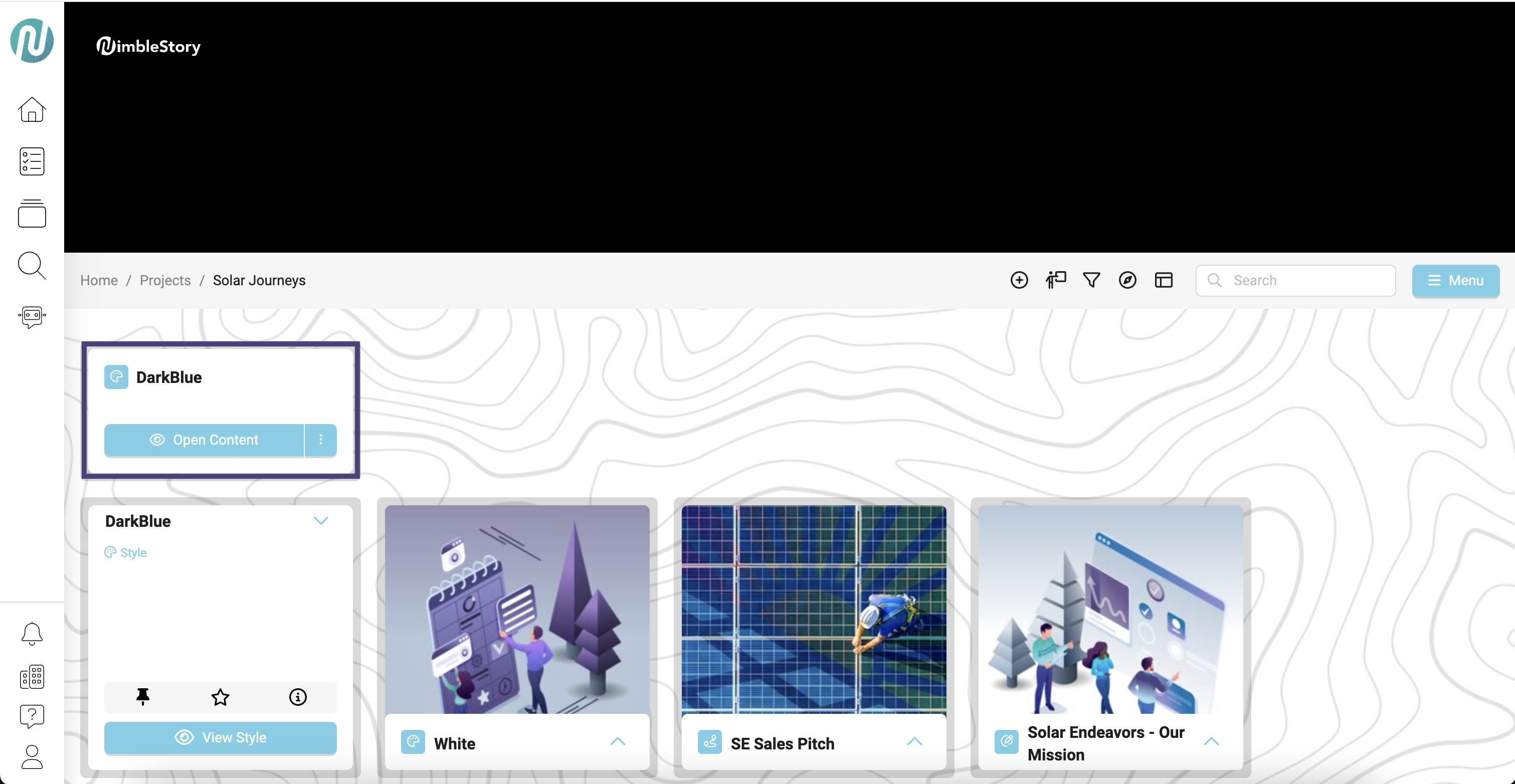
- Below is an example of how pinned content will appear.