View: Project Detail
📘 Overview: Project Detail View
From the Organization Home screen, you can navigate to a specific Project, which is called the Project Details view. Here you can find all the various assets and content that are associated with a given Project. Project Content is presented in the form of cards that can be opened into their own view. Depending upon how Project Content has been added and prioritized by its team, each card may be rendered in various sizes within the displayed grid.
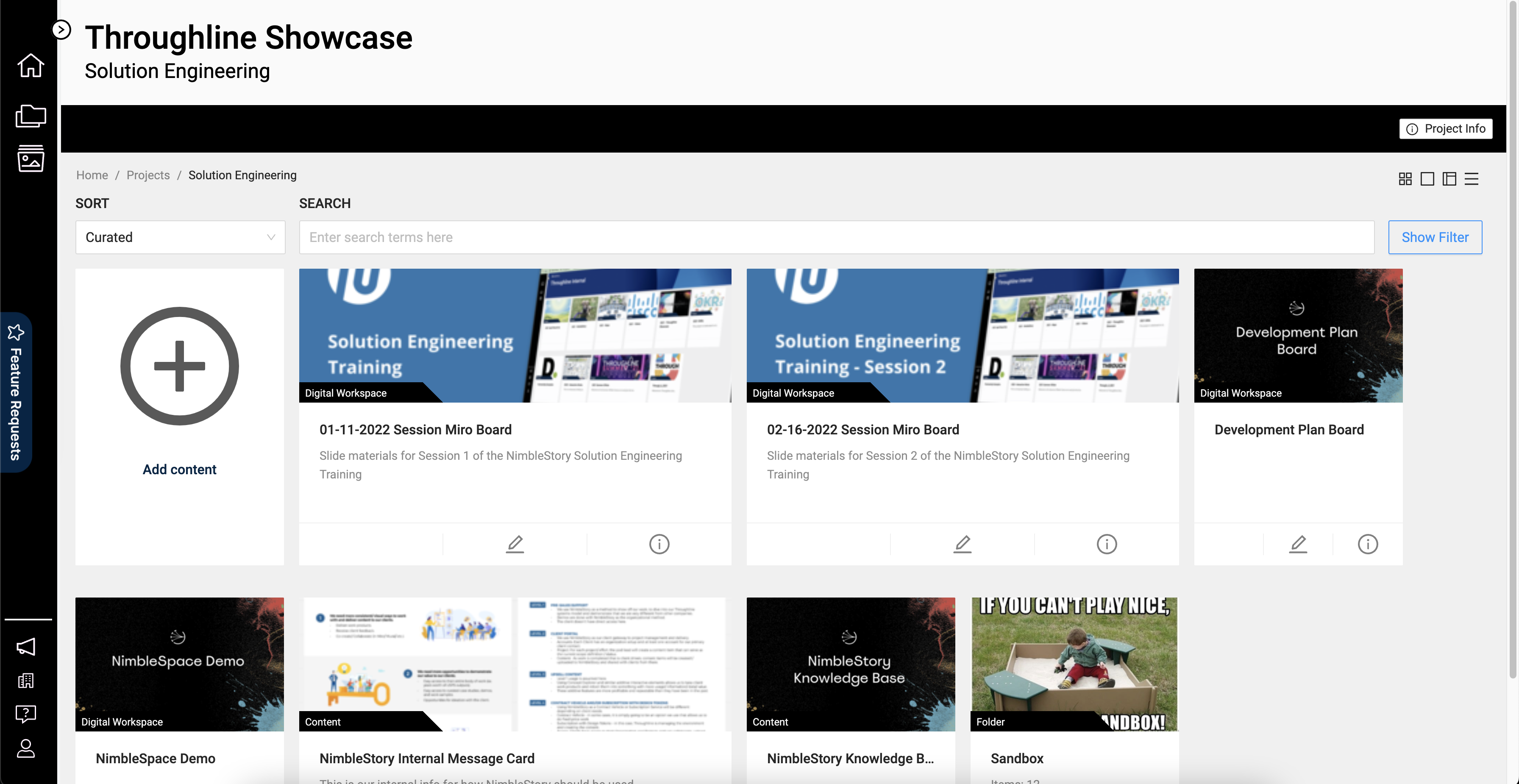
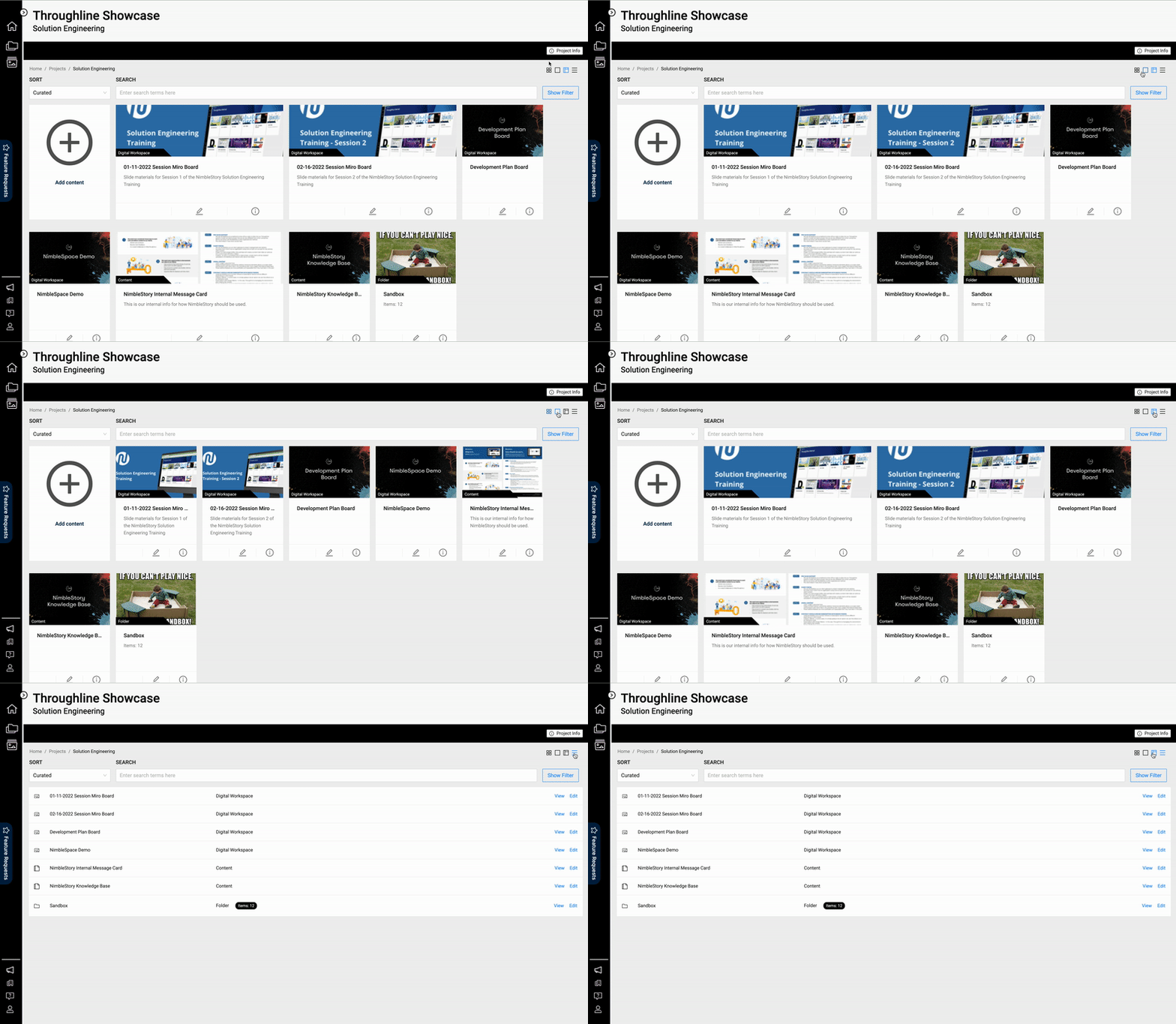
 Every user can slightly adjust the Project Details view to their personal preference by selecting one of the alternative view icons in the upper right corner which include:
· Mini Card – presents each asset as a small card size
· Standard Card – presents each asset as a standard card size
· Default Cards – presents each asset based on the card size selected when uploaded
· List View – presents each asset in a list.
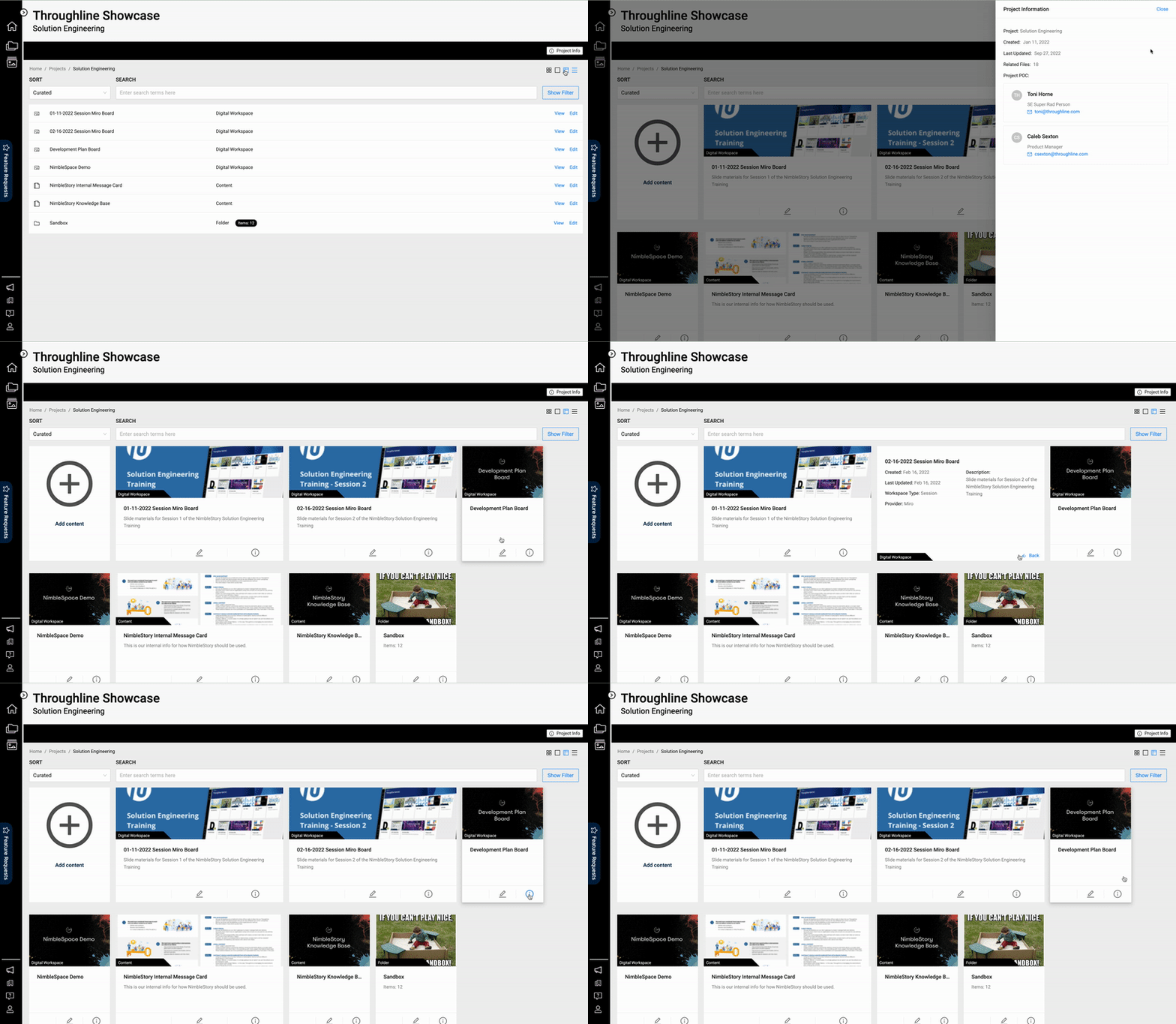
From the Project Details view a user can also see basic information about the Project itself by selecting the Project Info button in the upper right corner of the screen. This info includes any tags that may have been applied, key points of contact, how many pieces of content are contained in it, and when it was last updated. Additionally, each card in NimbleStory will have an info icon at the bottom of the card that can be selected to display highlighted information about the individual asset itself. Depending on the card size that is set, more information can be shared with you.
NOTE: Depending upon the permissions applied to a given user, they have the ability to upload new content, edited existing content, invite new users to the Project, or manage the specific parts of the Project itself through the Project Control Center.